Secrets module, Lombiq GitHub Actions v4.2.0 - This week in Orchard (20/02/2026)
This week, you can see an interesting demo of the Secrets module, which provides a secure, centralized way to store and manage sensitive data such as passwords, API keys, connection strings, and certificates! But before that, let us quickly mention the new Content Manager Delete behavior and the Dynamic Cache Options documentation! And don't forget to check out the latest release of the Lombiq GitHub Actions project!
Orchard Core updates
Dynamic Cache Options documentation
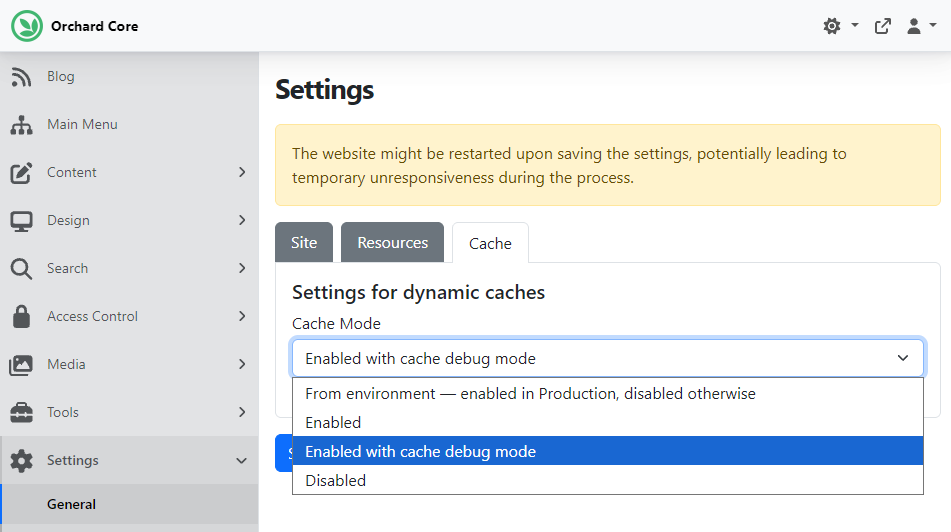
The Orchard Core documentation has been updated by Hisham Bin Ateya with some lines about the Cache Options. If you navigate to Settings -> General on the admin UI and select the Cache tab, you will see four options that can be configured for Dynamic Cache:
- From environment: Enables the Dynamic Cache feature in the Production ASP.NET Core environment.
- Enabled: Enables the Dynamic Cache feature.
- Disabled: Disables the Dynamic Cache feature.
- Enabled with cache debug mode: Enables the Dynamic Cache feature and activates debug mode, which logs the cache context metadata on the page as HTML comments. This is useful for troubleshooting cache-related issues.
New Content Manager Delete behavior
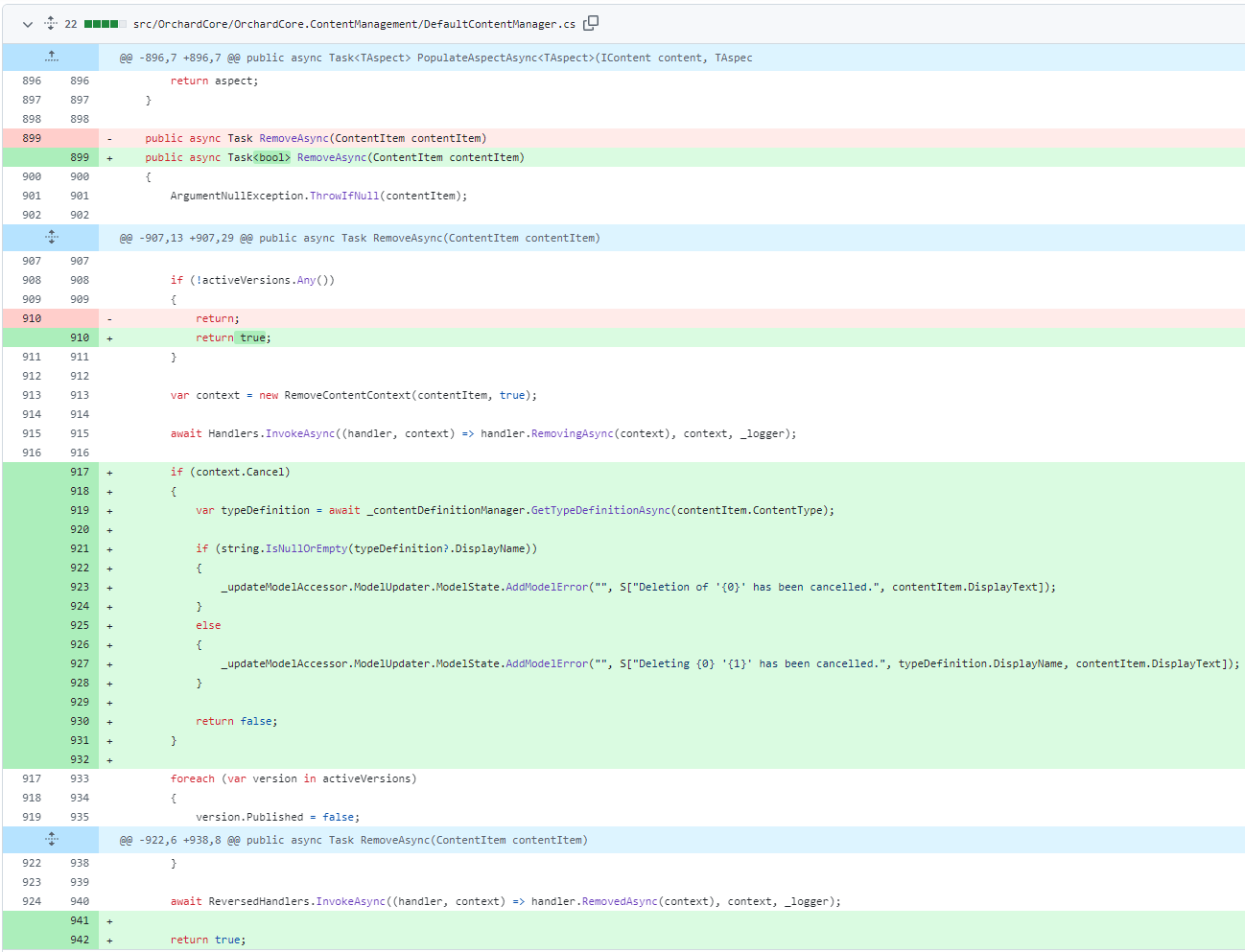
Let's say you have some content items in your system that admins must never delete (e.g., because they have a specific status). But if you navigate to Content -> Content Items and bulk delete these content items, you can't easily prevent it for a specific content item. Until now!
As you can see, the IContentManager.RemoveAsync() method now supports cancelable deletes and returns a bool indicating whether the delete operation actually occurred or was cancelled by a handler. This means that if the content handler for your content sets the RemoveContentContext.Cancel property to true, Orchard will cancel the deletion of your content item. Thanks for your first contribution, Shivam Pandey!
Demos
Secrets module
The Secrets module provides a secure, centralized way to store and manage sensitive data, including passwords, API keys, connection strings, and certificates. It addresses common challenges in managing secrets across development, staging, and production environments.
Managing sensitive configuration in web applications presents several challenges, which can be solved by using the module that provides. Some of these challenges are:
- Encrypted Storage: Storing passwords and API keys in appsettings.json or environment variables can lead to accidental exposure through source control, logs, or configuration dumps. All secrets are encrypted using ASP.NET Core Data Protection before being stored in the database.
- Deployment Support: When using deployment plans or recipes to set up new tenants, secrets cannot be included directly, as this compromises security. This module provides deployment support for exporting secret metadata (not values) and importing secrets from environment variables during setup.
- Centralized Management: Different environments (development, staging, production) often need different secrets, making configuration management complex. Using this module, you can use a single admin UI to view, create, update, and delete all secrets.
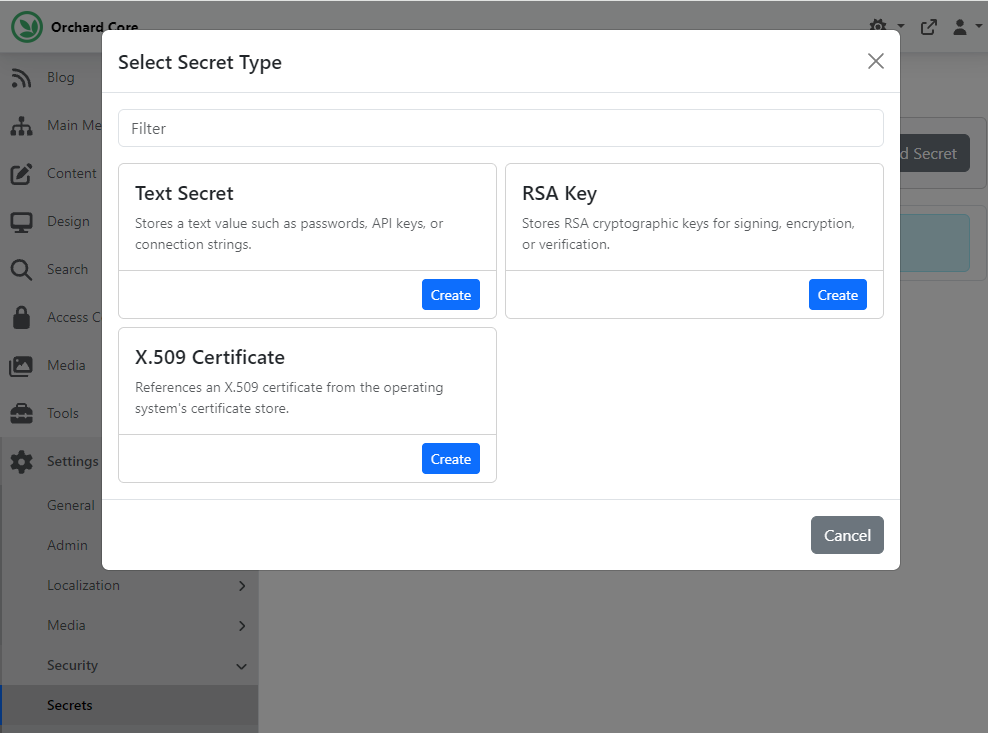
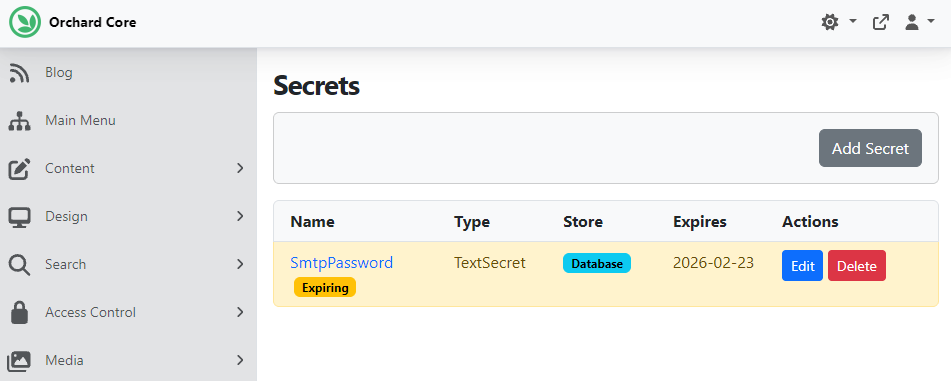
To enable the module, head to Tools -> Features and enable the Secrets feature (if you want to use Azure Key Vault to store and retrieve secrets, enable the Secrets - Azure Key Vault feature too). After, you can navigate to Settings -> Security -> Secrets to open the secrets management page. This page displays all stored secrets, including their names, types, stores, and last updated dates. Clicking on the Add Secret button lets you choose the type of secret.
Every UI here is dynamic, every secret type is extensible, and you can define the editor for every single type. Here, we selected the Text Secret type to store a secret called SmtpPassword in the Database. The database store uses ASP.NET Core Data Protection to encrypt secrets before storing them.
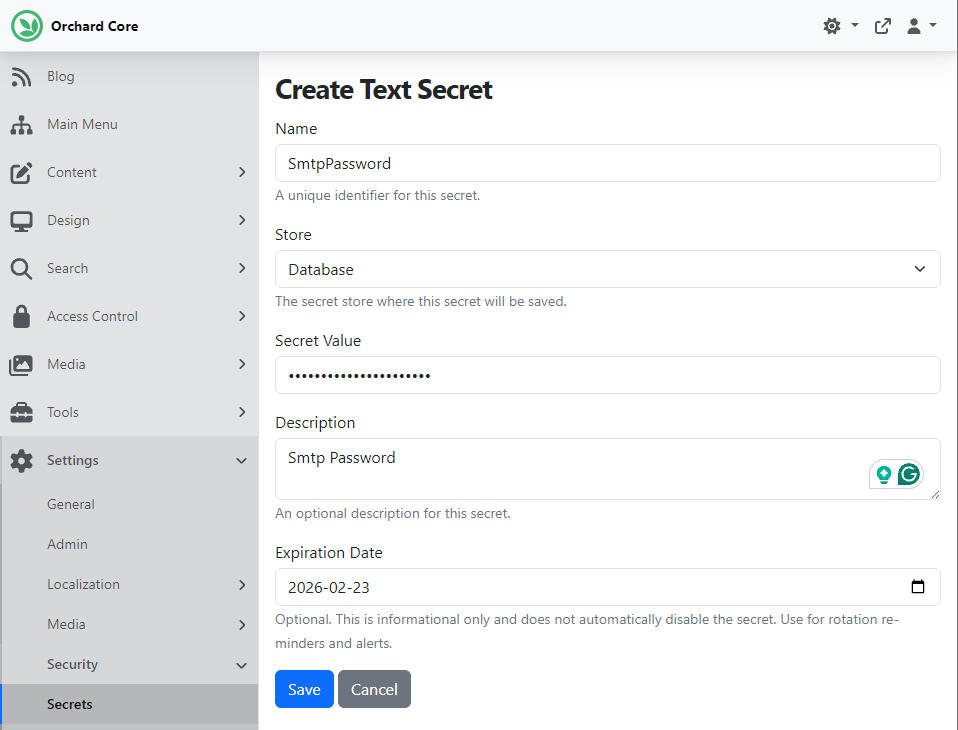
Secrets can have an optional expiration date. Its purpose is to track when secrets should be rotated or renewed. Expected secrets continue to work; the expiration does not automatically disable them, but on the secrets management page, you will see visual indicators in the form of badges:
- Expired secrets show a red Expired badge.
- Secrets expiring within 30 days show a yellow Expiring badge.
- The secrets list highlights expired/expiring secrets with colored backgrounds.
And as you can see here, we set the expiration date to next Monday, which is within 30 days, which is why you can see the yellow Expiring badge.
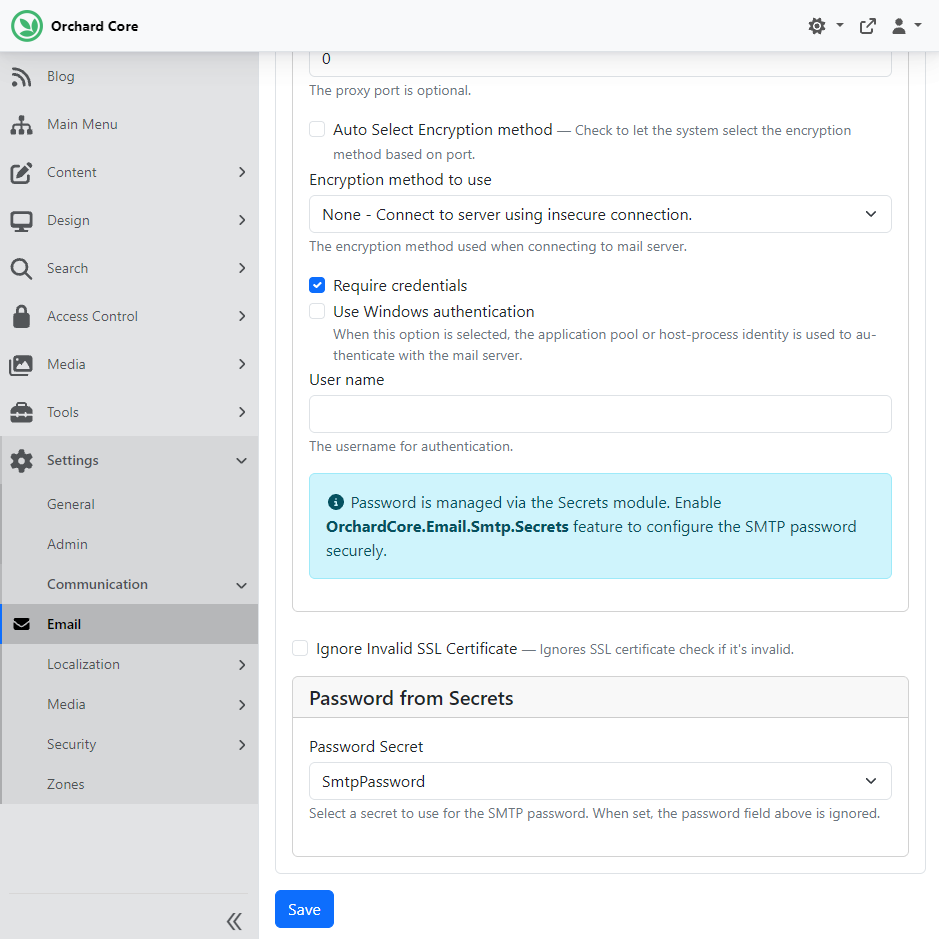
Now it's time to try out our secret! We called our secret SmtpPassword, so we will use it to set up our SMTP Provider! Before doing that, we have to make sure that the SMTP Email Provider and the SMTP Email Secrets features are enabled. The first provides an email service provider that uses Simple Mail Transfer Protocol (SMTP), and the second allows us to store SMTP credentials as secrets rather than in settings. Go to Settings -> Communication -> Email and click the SMTP tab. Put a tick in the Enable SMTP Provider checkbox and in the Require credentials one. To authenticate, you need to provide a username and a password. And as you can see in the screen below, now you don't have to type the password here; instead, you can use a dropdown to set the password from the secrets we set on the secrets management page previously.
And as always, if you want to see this feature in action, head to YouTube for a demo by Sébastien Ros!
News from the community
Lombiq GitHub Actions v4.2.0
The Lombiq GitHub Actions project contains extensions that make a lot of things very easy in an Orchard Core or an Orchard Core-based project. If you don't know GitHub Actions or aren't entirely clear with the terminology, GitHub actions are GitHub's automation platform or CI/CD platform. Orchard Core, of course, also uses it to run various builds. And how you define a pipeline is by creating workflows and/or composite actions. Workflows are what actually run, and actions are things you can add on your own; these are things workflows can call. A workflow is kind of like a program, and an action is like a library your program calls into. And of course, actions can be third-party as well. The point here is that you can use GitHub actions to automate a lot of things, like .NET builds, running tests, and doing various verifications on a pull request, and you can also do all kinds of modularization between these builds.
Under this project, we have workflows and actions. Workflows that you can call from your own workflows. Pretty much like one-liners, for example, to run the .NET build and execute a test. Actions are the building blocks you can use if you just want something specific. And we have quite a lot of actions and workflows here.
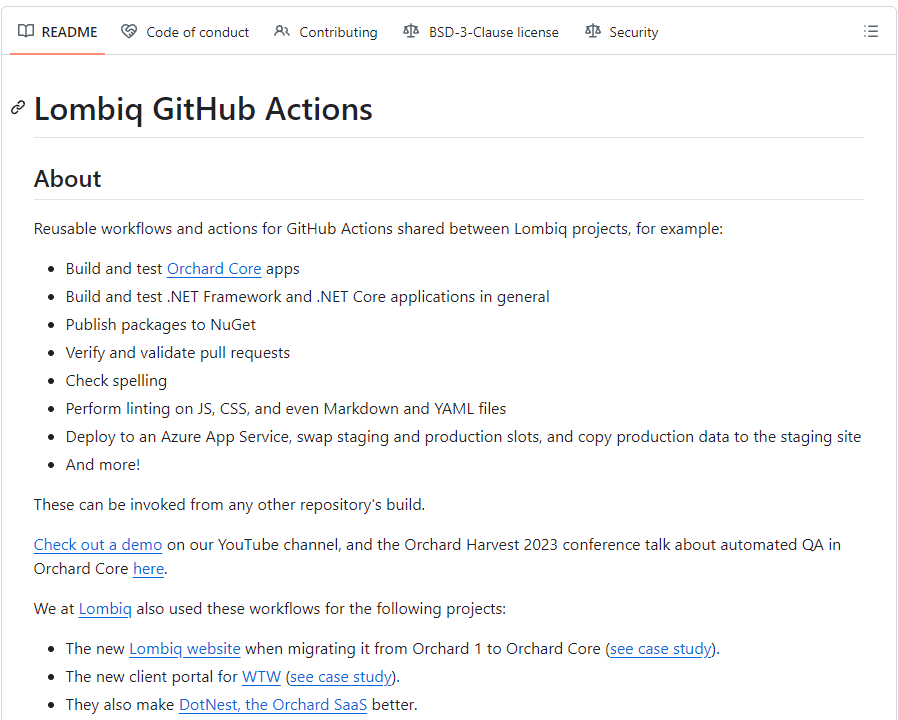
This week, we released the latest version of GitHub Actions, with several new additions and improvements, like:
- The Elasticsearch setup step broke on GitHub-hosted runners. This release adds a reimplemented step that works in the same way but is compatible with the current runner images, too. If you have used Elasticsearch for UI testing before, we recommend that you update to this release ASAP.
- New Asset Linting workflow.
- Indicate if a PR has breaking changes and generate CompatibilitySuppressions.xml file files.
- Action/workflow to automatically open a PR.
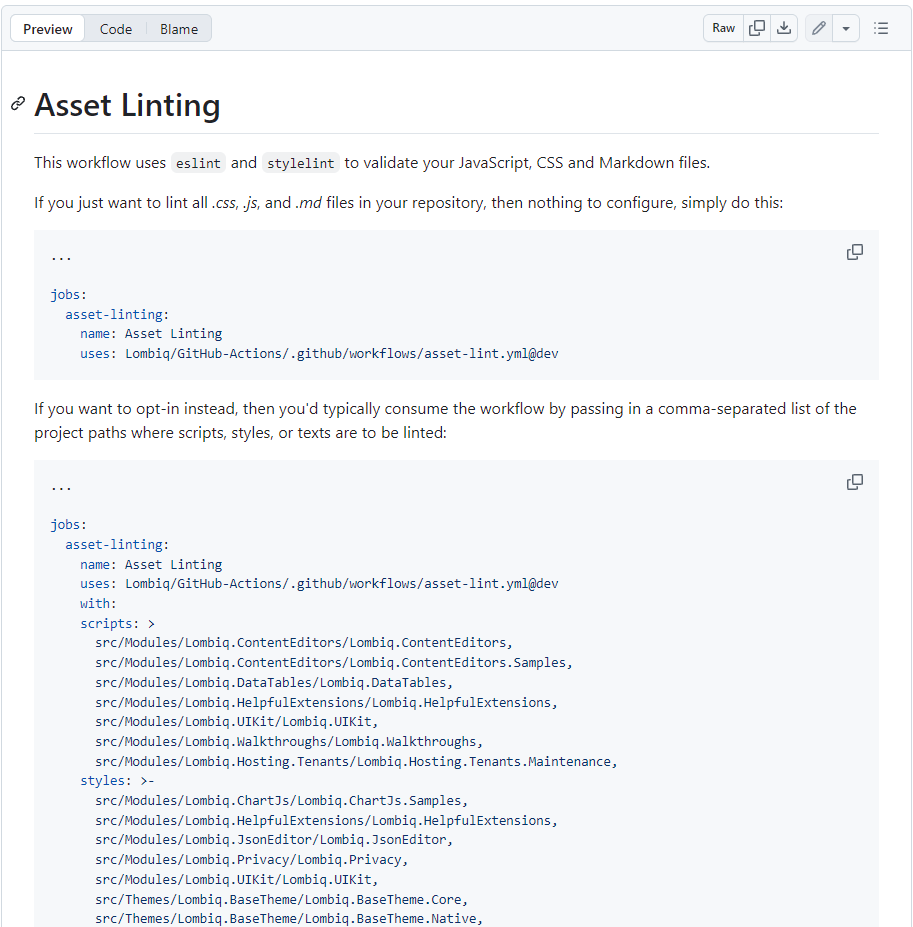
Visit the Lombiq GitHub Actions repository and check out the new release for all the goodies!
Orchard Dojo Newsletter
Lombiq's Orchard Dojo Newsletter has 426 subscribers! We have started this newsletter to keep the Orchard community informed about the latest news on the platform. By subscribing to this newsletter, you will receive an email whenever a new post is published to Orchard Dojo, including 'This Week in Orchard', of course.
Do you know of other Orchard enthusiasts who would like to read our weekly articles? Tell them to subscribe here!