AI Chat Interactions module, migrate Media and Resources modules from Gulp to asset manager pipeline - This week in Orchard (23/01/2026)
This week's topics include adding ShapeResult.Cache() docs, and migrating Media and Resources modules from Gulp to asset manager pipeline, and a demo of the AI Chat Interactions module! Let's just get right into the news!
Orchard Core updates
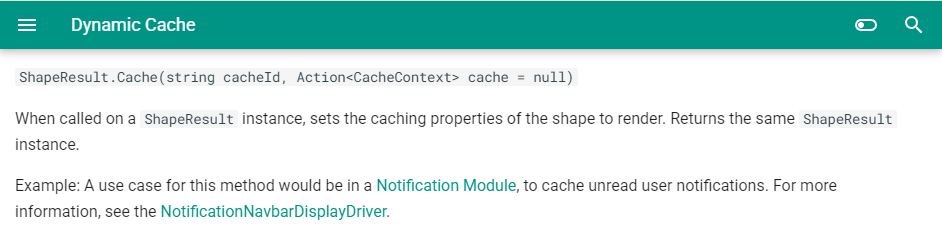
Add ShapeResult.Cache() docs
ShapeResult.Cache() is a simple way to cache shapes created from drivers. It uses Dynamic Cache in a similar way as ShapeMetadata.Cache() does, but unlike that, it's not documented and, most likely related to that, is also underutilized (only the Notifications project uses it).
From now on, you will find some lines about how to use the ShapeResult.Cache() method in the documentation of the Dynamic Cache module, thanks to Hisham Bin Ateya!
Migrate Media and Resources modules from Gulp to the asset manager pipeline
Orchard Core included a processing pipeline for client-side assets (typically scripts and stylesheets), which was used to perform front-end development workflow tasks such as transpilation, minification, and bundling in both core projects and extensions (i.e., modules and themes).
The client-side asset pipeline was powered by Gulp, a popular open-source task runner built on Node.js that automates a wide variety of tasks in a development workflow.
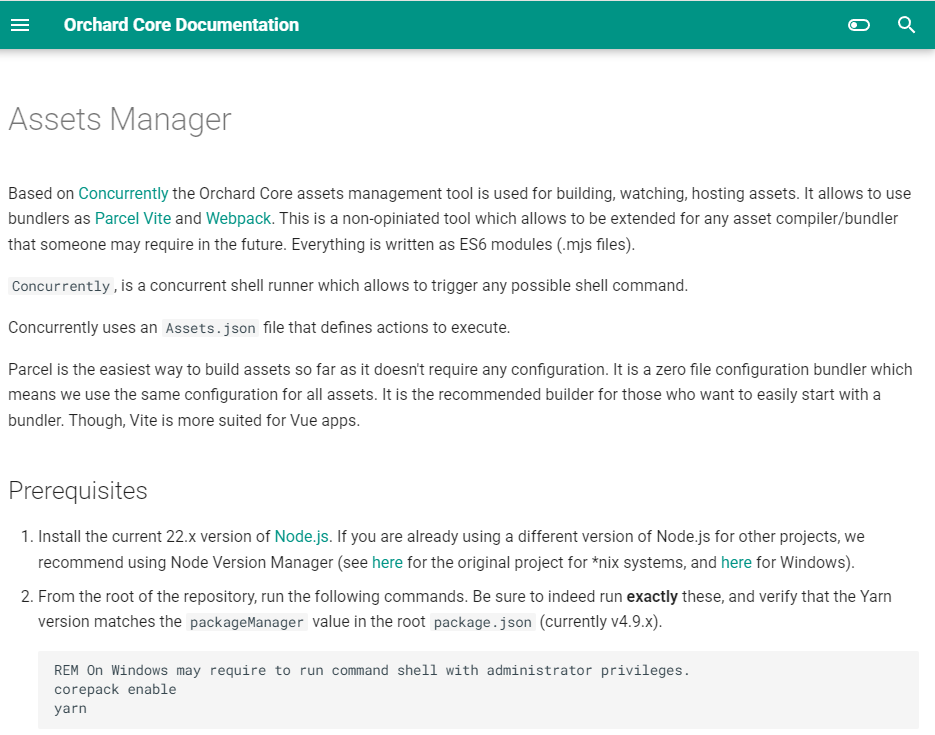
From now on, the Gulp pipeline is removed and can no longer be executed. The goal of this change is to migrate the Media and Resources modules to the new asset manager pipeline and remove the entire Gulp infrastructure. This means you will not find a gulpfile.js file, as we will no longer need Gulp. Sébastien Ros also removed 19 Gulp dependencies, Gulp scripts, and integration. Instead, you will find an Assets.json file in the Media module and in the Resources module to support the new pipeline.
The migration involved updating asset actions to use environment variables to pass large lists of files, and addressing command-line argument length limitations, particularly in Windows CI environments. It means that all modules now use the modern asset manager pipeline exclusively.
You will find everything you need to know about using the Assets Manager in this updated guide from the Orchard Core documentation.
Demos
AI Chat Interactions module
At the beginning of last year, we mentioned a new module created by Mike Alhayek, which is an implementation of AI that allows you to interact with any AI model. He worked extensively on that solution and, from time to time, added many new features, which we mentioned here and here. After that, we highlighted the Model Context Protocol (MCP) Client and Model Context Protocol (Local MCP) Client features, as well as the Orchard Core AI Agent feature. And last time, you could read about the AI Data Source Management feature. Here is the GitHub repository for this project, along with its corresponding NuGet package.
There have been many changes since the AI Data Source Management feature was introduced; the AI Suite now includes 23 features! The one we will check out today is the AI Chat Interactions module, which provides a playground where you can create a chat instance, configure it however you want, and chat with that AI model. Here you can find several new features that enable ad-hoc AI chat interactions.
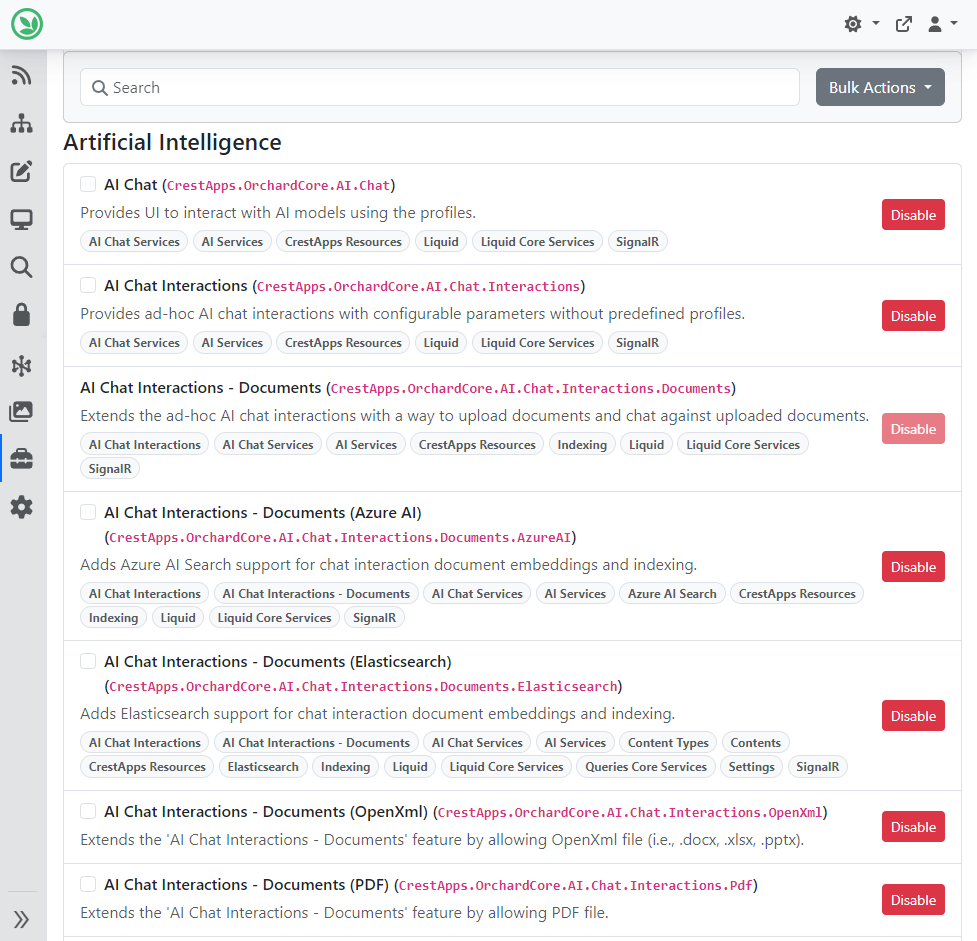
After enabling these features, you will see a new option under Artificial Intelligence, called Chat Interactions. If you click on the New Chat button on that screen, you can add a new interaction. After that, you can select whichever provider you want to use. In our case, we selected the Azure OpenAI one.
And as you see, the playground is ready. The Title is a descriptive name for this chat interaction. It helps you identify and find this conversation in your history. You can select the AI model to use for this chat interaction from the Deployment drop-down. If not selected, the default deployment will be used. The System instructions text area provides the AI with instructions on how to behave, what role to play, and what style to use in its responses. This is the "persona" or "context" that guides all AI responses.
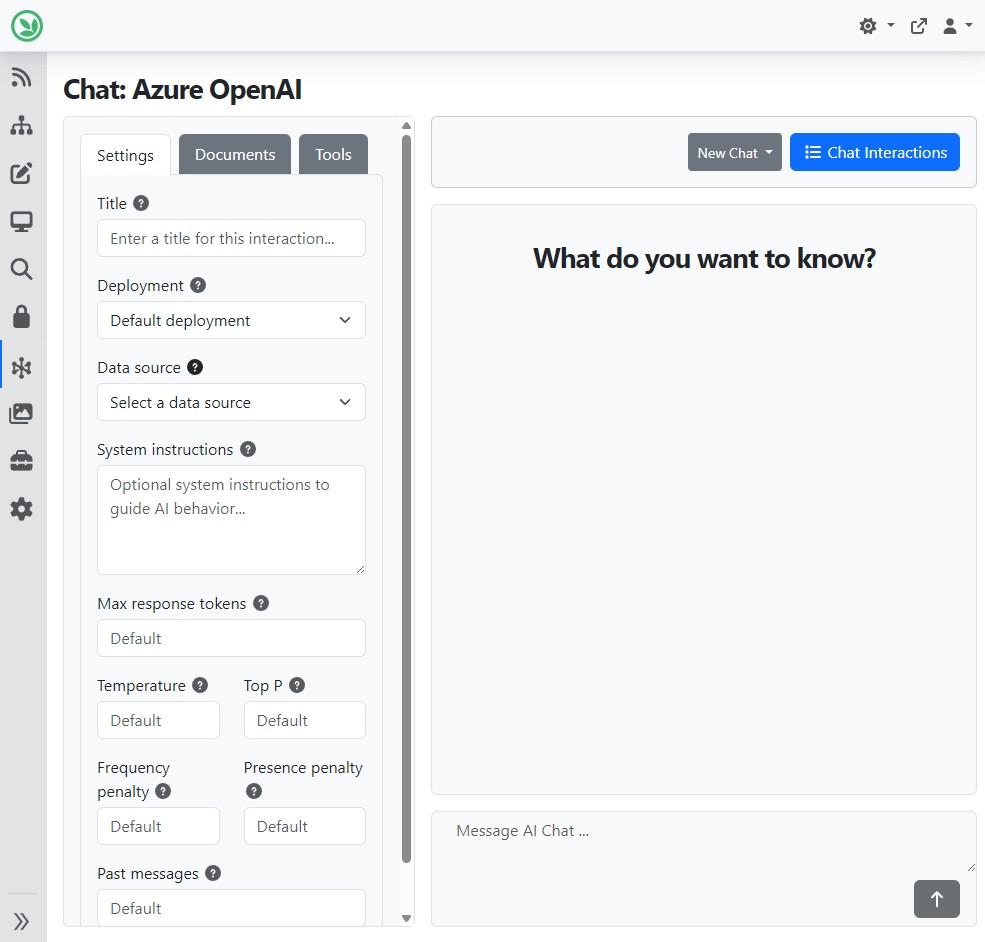
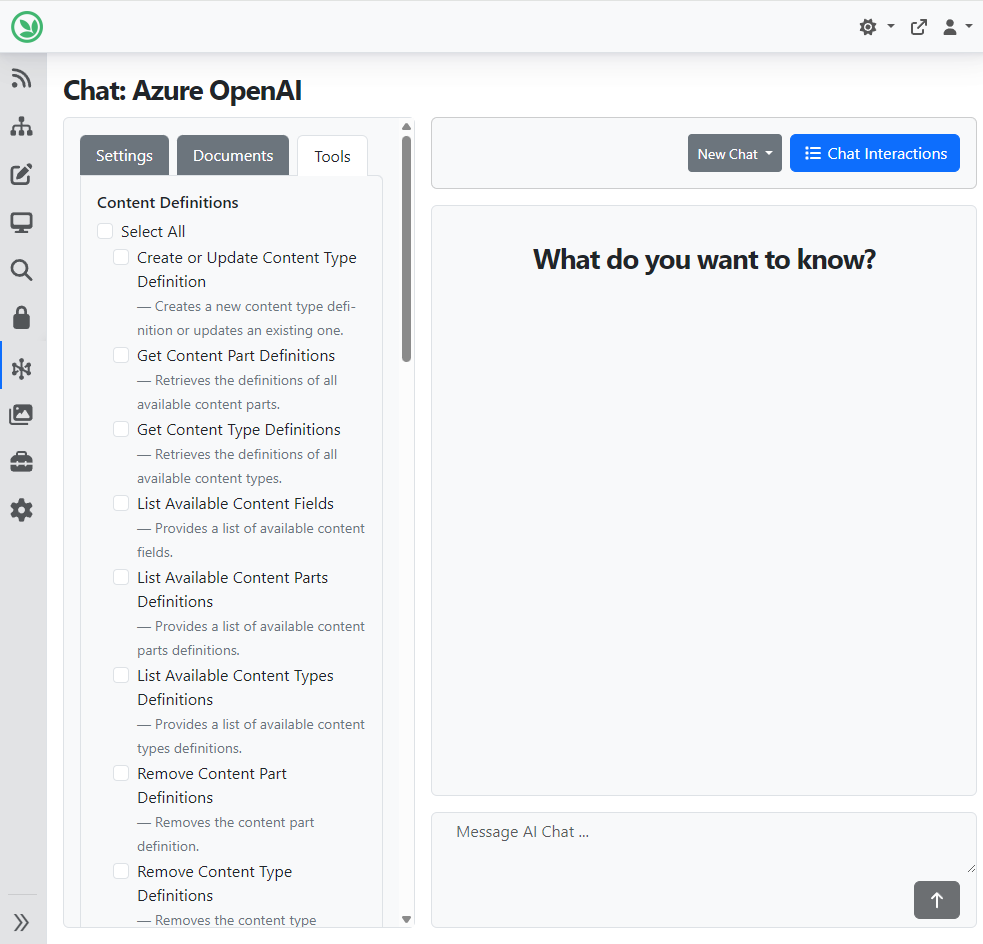
If you enable the Orchard Core AI Agent feature, you can use natural language to run tasks, manage content, interact with Orchard Core features, and do much more with integrated AI-powered tools. And that's the one that provides you with the Tools tab here. If you want to create content, you can say, "Create a Blog post for me about a specific topic".
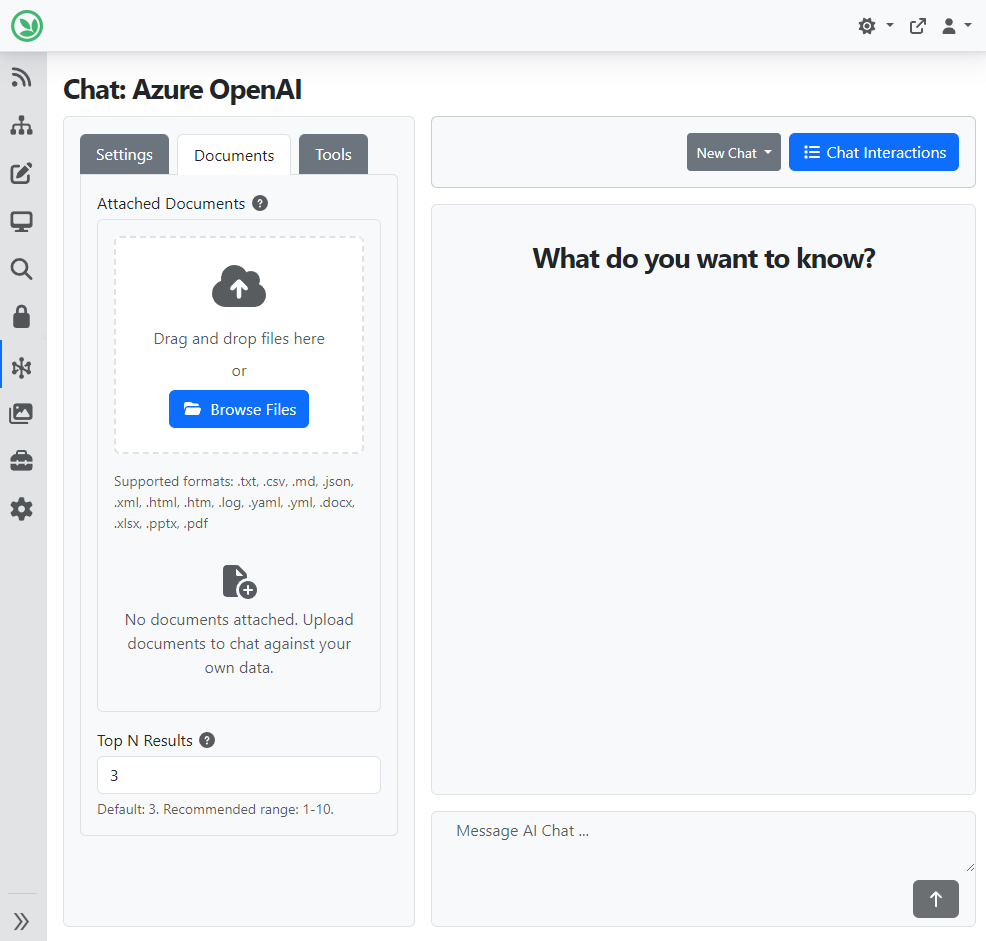
If you have the AI Chat Interactions - Documents feature enabled, it extends ad-hoc AI chat interactions by allowing you to upload documents and chat about them. Under the Documents tab, you can attach any document you want and chat about it. If you have a bunch of files you want to run analytics on or ask a bunch of questions on, you can just drag and drop them here.
And that's not all of it! To learn more about this module, watch a YouTube recording! And guess what! This feature has evolved so much since this original demo!
With document attachments, Chat Interactions goes far beyond basic RAG. It understands intent, making responses smarter, more accurate, and far more useful. What can you do today?
- Upload an Excel file and ask questions about the data.
- Summarize, aggregate, or analyze spreadsheets.
- Attach reports, project plans, or business documents.
- Ask for meaningful summaries, insights, trends, or key takeaways.
Think of it as having an intelligent analyst right inside the chat. The possibilities are endless. And the best part is all of this power is already available!
Orchard Dojo Newsletter
Lombiq's Orchard Dojo Newsletter has 428 subscribers! We have started this newsletter to keep the Orchard community informed about the latest news on the platform. By subscribing to this newsletter, you will receive an email whenever a new post is published to Orchard Dojo, including 'This Week in Orchard', of course.
Do you know of other Orchard enthusiasts who would like to read our weekly articles? Tell them to subscribe here!